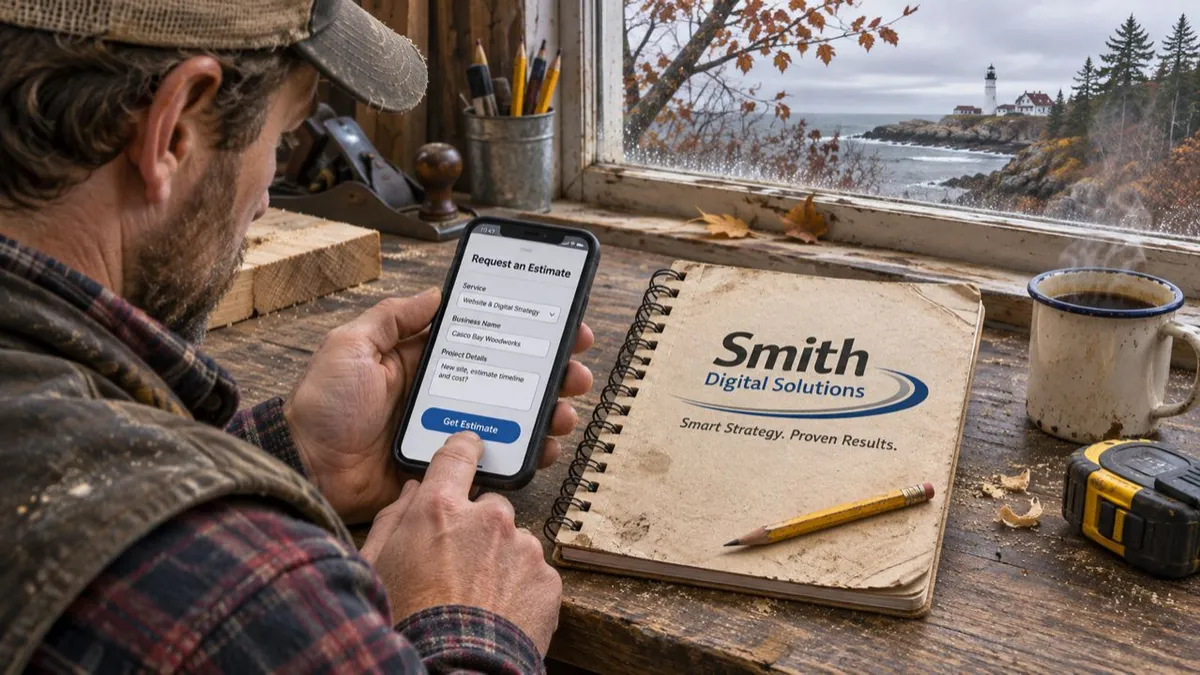
Can a Customer Book You From Their Phone?
A customer finds your business on Google. They tap through to your website, decide you handle the kind of work they need and fill out the estimate form. Then they wait. The form shows a thank-you message, but the request never reaches the person who answers inquiries.
From the customer’s side, your business hasn’t called back. From your side, the inquiry never happened.
To find out whether customers can book or request an estimate from their phones, start on your public Google Business Profile and follow the same steps they would. Complete a test request, confirm it reaches the right person and check what the customer sees afterward.
Start where a new customer starts
Use a private browser window and search for your business name and town. Open the result a customer would see. Tap the website or appointment button, then stop on the first screen. Can you tell what the business does and whether it serves your area? Can you see where to call or request an estimate?
Test on cellular data as well as Wi-Fi if customers often reach you from places with uneven coverage. A heavy first screen or a button that appears only after several elements load can change the experience. Note where the customer first has to wait, hunt for information or zoom in to use the page.
Try the same path from a service page. A customer who arrives from a search for a specific job may never see the homepage. The page they land on should still explain the next step.
Match the button to what happens next
“Book now” makes sense when customers can choose an available time and receive a confirmed appointment. “Request an estimate” fits when you need to review photos, confirm the service area or speak with the customer before scheduling.
Imagine a Bangor-area painting company that needs the town, the type of project and a way to reach the homeowner. It can collect those details before asking for room measurements or paint preferences. If photos help, make them optional where practical. Try the form without an attachment so you know a customer can complete it while away from home.
Read the confirmation as though you’ve just submitted a real job. Does it tell you that the request was received, when you can expect a response and what to do if you need to follow up? Give a response window the business can reliably meet.
Follow the request to the person who owns it
Submit a request with TEST in the name or message so staff can identify it. Use a contact address you control. Check the confirmation screen, any email or text the customer receives, and the inbox or CRM where your team expects the request.
| Checkpoint | What to verify |
|---|---|
| Website button | The link opens the current form or calendar on a phone. |
| Form | Required fields can be completed, and errors explain what to fix. |
| Confirmation | The visitor can tell the request went through and what happens next. |
| Staff notification | The request reaches an inbox or queue someone checks. |
| Follow-up | The assigned person can reply and knows who covers absences. |
Check which part breaks before changing anything. If the form records the test but the email never arrives, look at routing and notifications. If staff gets the request but the customer sees an error, check what happens immediately after submission. Retest from Google after the fix so you can see the whole path again.
Keep a short record of what you fixed
Write down the page where you started, the button you used, what you expected and what happened. For example, “Interior Painting page, Request an Estimate button, expected an estimate form, opened an old calendar.” Add the owner of the fix and the date you retested.
Repeat the test after a website change, a calendar switch or a staff handoff. It takes a few minutes once you know the route, and it catches problems that a ranking report or website traffic report cannot show on its own.
Questions and answers about mobile booking
Should every local business offer online booking?
A direct calendar works for services with predictable appointment lengths and clear availability. For jobs you need to scope first, a short estimate request and a clear follow-up window may serve customers better.
What if the form works on a desktop but fails on a phone?
Repeat the test in a private window on a phone and record the exact step that fails. Check the keyboard, required fields, attachment control and confirmation. A screenshot and the page URL give your web team a place to start.
How many fields should an estimate form ask for?
Ask for what your team needs to route and answer the first inquiry. For a local service business, that may be name, contact details, town and a short project description. Ask for job-specific details as needed during follow-up.
How do I know a request went to the right person?
Use a marked test submission and ask the person responsible for new inquiries to confirm receipt. Check that they can see the information needed to reply and that someone covers the queue when they’re away.
What if customers prefer to call?
Keep the phone number easy to find and test that tapping it calls the right line. Use the form for customers who want to send details or contact you outside business hours. Smith Digital Solutions can review both paths as part of a local visibility audit.
